


 发帖
发帖
 雷达卡
雷达卡



- Overview
- Preliminaries
- Files types
- Markdown and R Markdown
- Creating an R Markdown file
- File tab
- Text formatting using Markdown syntax
- Mathematical equation formatting commands using LaTeX syntax
- R code formatting commands using R Markdown syntax
- Git diff
- LaTeX documents
This article is part of the R for Researchers series. For a list of topics covered by this series, see the Introduction article. If you're new to R we highly recommend reading the articles in order.
OverviewThis article will introduce you to R Markdown, a document writing program, and demonstrates using RStudio's Git diff, a tool to examine when prior changes were made to a project. These tools are part of RStudio's development environment. They help you work more efficiently.
R Markdown has two advantages that are of interest to a researcher. The first is it allows the results of R code to be directly inserted into formatted documents. The second advantage is it is incredibly easy to use. This ease is a result of R Markdown only using a small set of features and this reduces the complexity of the needed commands. This set of features supports the most commonly used formatting, resulting in the ability to create most documents. These features make R Markdown documents easy to write and the process less error prone.
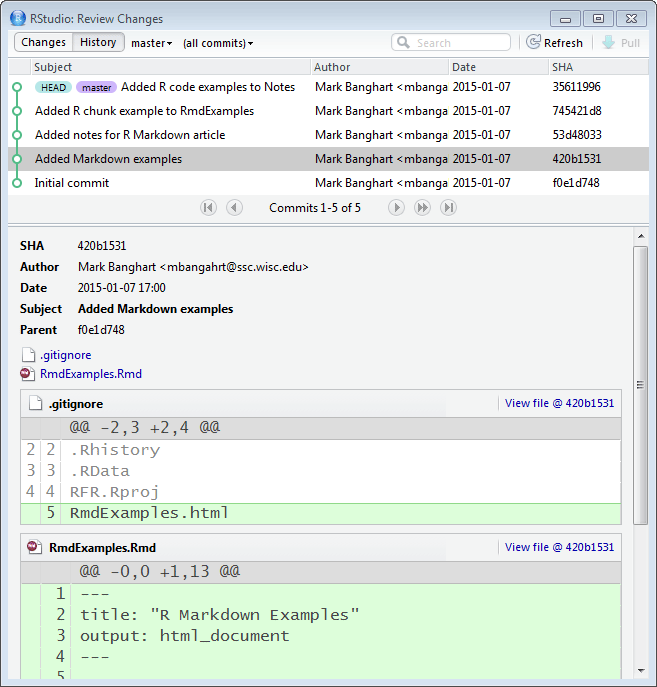
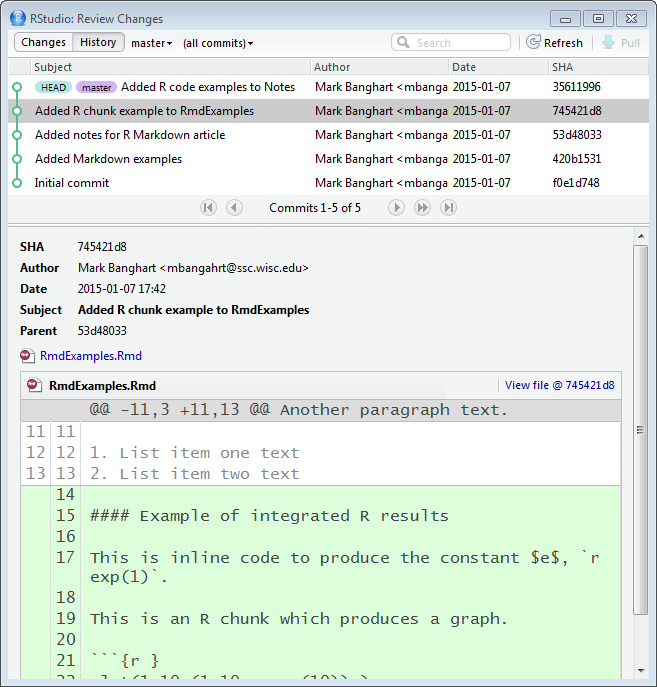
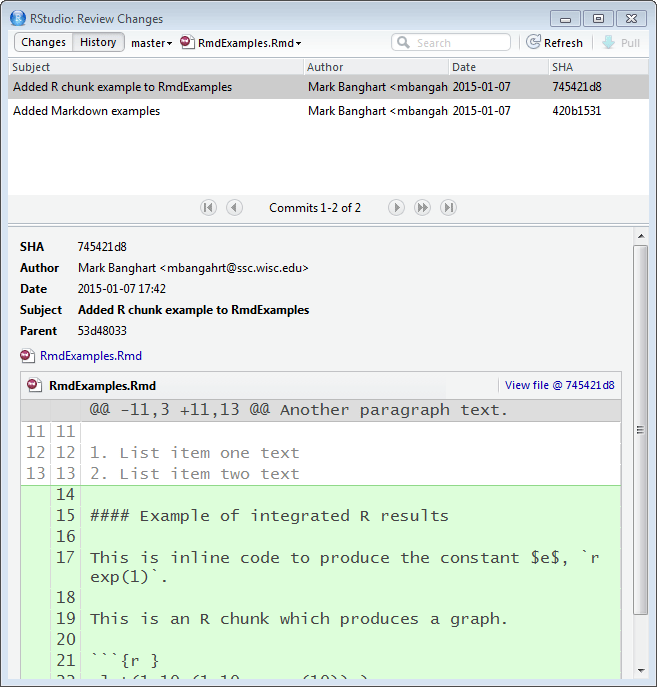
Git diff allows you to look at what has changed in a file, or files, between any two saved project states. This can be very helpful in determining why results have changed.
Preliminaries
You will get the most from this article if you follow along with the examples in RStudio. Working the exercise will further enhance your skills with the material. The following steps will prepare your RStudio session to run this article's examples.
- Start RStudio and open your RFR project.
- Confirm that RFR (the name of your project) is displayed in the upper left corner of the RStudio window.
- Confirm that there is a Git tab in one of the tab panes.
Files types
RStudio is able to work with a variety of programming languages. This article series covers two of these program languages, R and R Markdown. This article provides an introduction to R Markdown files, which have a file type of .Rmd. R Programs are called R scripts, which have file type .R. The next article introduces R Scripts.
This article series will use .txt and .csv files for datasets. These are the common file types used to import text datasets. The use of these file types will be covered in the data preparation article. This article series will not make use of R's dedicated data file type for data, .RData.
Markdown and R Markdown
Markdown is a tool used to create formatted documents. Markdown source files, file type .md, contain text and formatting commands. Markdown's formatting commands are simpler than most other formatting languages, such as LaTeX or HTML, because it has a smaller number of features. This small set of features supports the most commonly used formatting. The source files are also easier to read than LaTeX or HTML. Markdown is a good choice to format most documents.
R Markdown is an extension of Markdown. R Markdown adds a few features which include R code and results in the formatted document. This allow you write documents which integrate results from your analysis. Incorporating R results directly into your documents is an important step in reproducible research. Any changes that occur in either your data set or the analysis are automatically updated in your document the next time the document is created. There is no more going back through documents trying to find every thing that needs to be fixed when an analysis is rerun. This results in not only greater efficiency, but also fewer errors in documents.
RStudio creates a document, this is called knitting, from an .Rmd file in two steps. In the first step, the R commands are run. The results of the R commands are incorporated with the text and Markdown commands from the .Rmd file. The result of the first step is a .md file. The second step uses the Markdown formatting commands to format the final document. These steps are done together for you by simply pushing the knit button in RStudio.
R Markdown files can be knit to html, pdf, or Word documents. The knitted documents should not be changed by hand. Any edits that are made by hand will be lost when the document is knit again. We do not recommend knitting to Word, because a Word document is a form that is tempting to edit. We recommend knitting to either pdf or HTML files. Programs to read .html and .pdf files are widely available at no cost. In this article series we will generate HTML files.
Writing R Markdown documents is a little different process than with "What You See Is What You Get" (WYSIWYG) editors, such as Microsoft Word. The examples and exercises in this article series are designed to give you the practice and experience needed to be comfortable with this type of document creation process. As you start working with R Markdown, you may find it convenient to knit your document often. As you gain experience with R Markdown, you will knit much less frequently.
Creating an R Markdown file
To start a document we need to create a new R Markdown file.
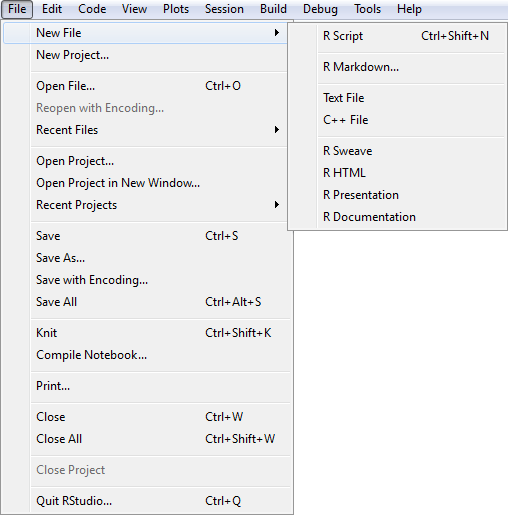
From the File menu, select New File and then R Markdown from the drop down menus.
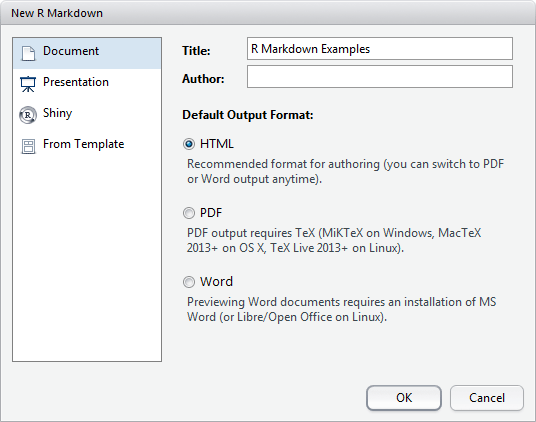
A New R Markdown window will open. Enter a title, here we will use "R Markdown Examples". This is the title which will be displayed in the document and is not the name of the file.



 京公网安备 11010802022788号